MAC Verifier
New: v2.0 — completely redesigned

Analyze network addresses
with a single hotkey

MAC address vendor lookup and IPv4/IPv6 subnet calculator — copy, press your hotkey, and the result appears in the corner of your screen. Built for network engineers.

Free · Supports Windows 7 – 11 · System requirements
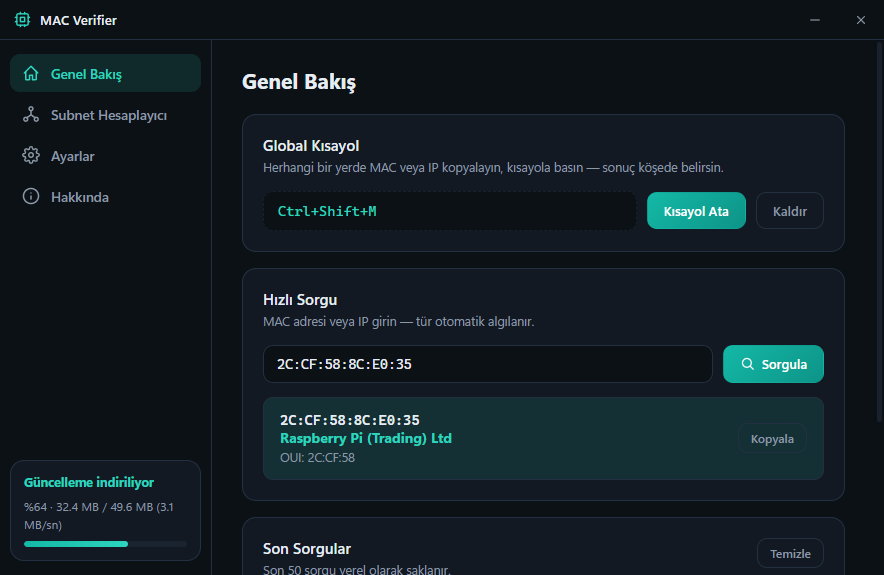
MAC Verifier main window — quick MAC lookup

A tool that never interrupts your workflow

MAC Verifier waits quietly in the background — always one keystroke away.

Global Hotkey

Copy a MAC or IP address in any application and press your hotkey — the result appears in a corner notification without opening a window.

MAC Vendor Lookup

Every format supported: 00:1B:44:11:3A:B7, 001B44113AB7, Cisco 2ccf.588c.e035 and partial OUI input.

Subnet Calculator

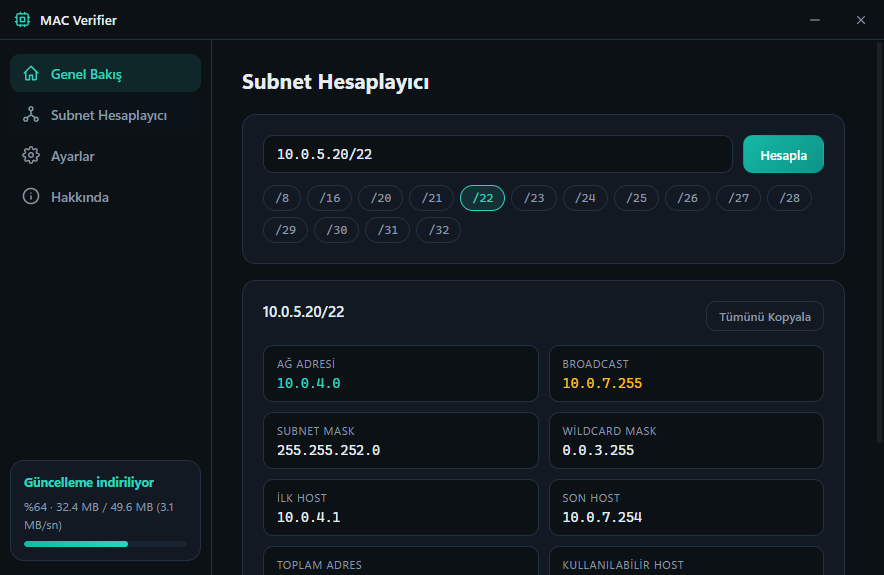
IPv4 and IPv6: network, broadcast, mask, wildcard, host range, class and type. Switch between CIDR values with one click.

Smart Corner Notifications

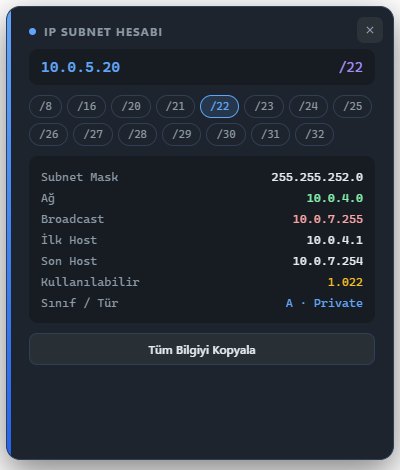
Results appear in sleek, stackable notification cards with built-in copy buttons — you can even change the CIDR right on the notification.

Automatic Updates

New versions download silently in the background and install with one click. Delta updates mean only the changed parts are downloaded.

Runs on Every Windows

Modern build for Windows 10/11; a dedicated Legacy build for Windows 7/8 and 32-bit systems. Installation requires no administrator rights.

Dark, clean, professional

A modern interface that's easy on the eyes — with a light theme option.

Subnet calculator — 10.0.5.20/22 example

Subnet Calculator — one-click CIDR switching

Corner notification — IP subnet result

Corner notification — results without opening a window

Download MAC Verifier

The right version for your system is highlighted automatically. Both are free and update themselves.

RECOMMENDED FOR YOU

Windows 10 / 11

Modern build for 64-bit systems

Download (x64)

v2.0.0

RECOMMENDED FOR YOU

Windows 7 / 8 / 8.1

For older Windows and 32-bit systems

Download (Legacy)

v2.0.0

Frequently Asked Questions

Windows shows an "unknown app" (SmartScreen) warning — is it safe?
Yes. This warning appears because the app doesn't have a large download history yet. Click "More info" → "Run anyway" to install. The auto-update system verifies every download with SHA-512 checksums.
Which version should I download?
If you're on Windows 10 or 11 (the vast majority of computers), download the modern build. If you're on Windows 7, 8, 8.1 or a 32-bit system, download the Legacy build. This page detects your system from your browser and highlights the right card.
How do updates work?
The app automatically downloads new versions in the background and notifies you; click "Restart & Update" and it installs in seconds. Automatic checks can be turned off in Settings.
Does installation require administrator rights?
No. The app installs into your user profile, so no admin rights are needed — it installs without issues on corporate machines too.
The app won't open — what should I do?
1) If you're on Windows 7/8 or a 32-bit system, make sure you installed the Legacy build. 2) The app detects GPU issues and repairs itself — try launching it once more. 3) If the problem persists, send the file %APPDATA%\mac-verifier\logs\main.log to [email protected] and we'll help you quickly.
How do I upgrade from the old version (v1.x)?
Just download and install the new version — your settings (including your hotkey) are preserved automatically. You don't need to uninstall the old version, but you can remove it from Control Panel if you like.